How to Create an Offline Account in DroidBridge Launcher for Minecraft Java on Android
Learn how to create and use an offline account in DroidBridge Launcher for Minecraft Java Edition on Android. Follow this step-by-step guide to install the launcher, configure settings, fix common errors, and launch the game successfully

Introduction
DroidBridge Launcher is one of the newest Minecraft Java Edition launchers available for Android devices. It offers a modern interface, smooth navigation, and support for launching Minecraft Java Edition directly on mobile devices.
However, many users have noticed that the offline account option appears to be missing when they first install the launcher. Fortunately, offline accounts are still supported and can be configured manually.
In this guide, we'll walk through the complete setup process, including installing the launcher, creating an offline account, configuring the required renderer, and fixing a common launch error.

Download and Install
Link: https://github.com/cheesakeyk/OFFLINE-FORK/releases/tag/0.2.15
DroidBridge Launcher
First, download the latest version of the DroidBridge Launcher fork from the link provided above
After opening the repository:
- Navigate to the Releases section.
- Download the latest available APK.
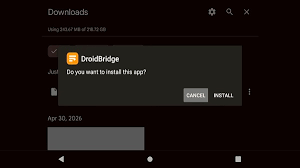
- Install the APK on your Android device.
- Launch the application.
The launcher will automatically download the required Java runtime files and libraries during the first startup.
Accept the EULA and Initial Setup
Once the required files have been installed, Minecraft's End User License Agreement (EULA) will appear.
Accept the EULA to continue.
The launcher may also request notification permissions. You can either allow or deny these permissions according to your preference.
If an update notification appears, it is recommended to select "Ignore" or "Update Later" for now. Updating may cause the launcher to request a Microsoft account login again.

How to Create an Offline Account
Creating an offline account is simple:
- Open Settings.
- Navigate to Account Management.
- Select Manage Offline Accounts.
- Tap Add Account.
- Enter your desired username.
- Optionally choose a custom skin.
- Save the account.
Your offline account is now ready to use.
Configure MobileGlues Renderer
Before launching Minecraft, it is important to configure the correct renderer.
Navigate to the renderer settings and select MobileGlues.
Using another renderer may cause:
- Launcher crashes
- Missing GUI elements
- Launch failures
- Rendering issues
If MobileGlues is not installed, download it using the provided link and grant the required file permissions after installation.
Installing Minecraft
To install Minecraft:
- Create a new instance.
- Select your preferred Minecraft version.
- Download the version files.
- Wait for installation to complete.
At the moment, offline accounts have limited support for mods and modpacks because many mod-related features require Microsoft authentication.
Fixing Launch Errors
Some users may encounter an error while building launch arguments.
If this happens:
- Close the launcher completely.
- Reopen the launcher.
- Open Instance Settings.
- Navigate to Per Instance Settings.
- Locate Custom JVM Arguments.
- Remove any existing arguments.
- Save the changes.
- Launch Minecraft again.
In most cases, this resolves the issue immediately.
Performance and Gameplay Test
After applying the settings above, Minecraft should launch successfully.
For better performance:
- Set Max Framerate to Unlimited.
- Use 6 Chunks Render Distance.
- Use MobileGlues Renderer.
During testing, the world loaded successfully and the selected offline account skin appeared correctly in-game.
Keep in mind that performance may vary depending on your device, recording settings, and Minecraft version.

Conclusion
DroidBridge Launcher provides a smooth way to play Minecraft Java Edition on Android, even without a Microsoft account.
By creating an offline account, configuring MobileGlues, and correcting JVM settings when necessary, you can launch and play Minecraft Java successfully on mobile devices.
If you encounter issues with mods, launch errors, or renderer configuration, stay tuned for future guides covering those topics in more detail.
 droid home
Zalith Launcher Offline Account Download (Latest Version) – Get Offline Mode Back
The Rise of Agentic AI: Why 2026 Will Change Technology Forever
Want more like this?
Get curated reviews and buying guides delivered to your inbox.
Found this helpful?
Comments
Sign in to leave a comment
Sign InNo comments yet. Be the first to comment!